%20(1).png?width=325&height=82&name=Logo%20Endorphine%20(1)%20(1).png)
1. Details
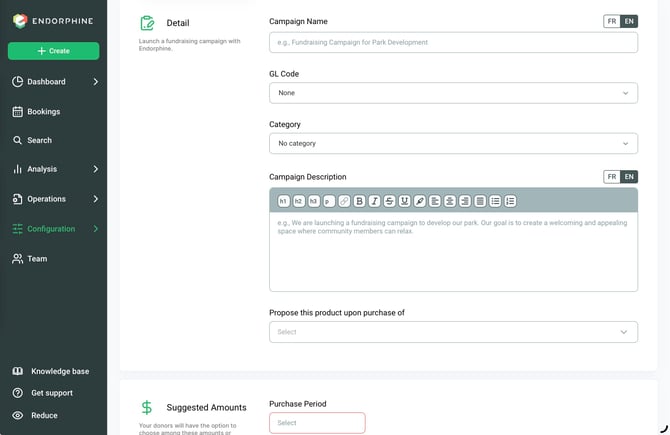
Campaign Name
Enter the campaign title (e.g., Park Development Campaign).
This name will be displayed publicly to encourage donations.
GL Code
Select the general ledger (GL) code associated with the funds collected to ensure accurate financial tracking.
Campaign Description
Add a description explaining the purpose and goals of the campaign.
For example: “We are launching a donation campaign to help fund the development of our park. Our goal is to create a welcoming space where the community can relax, connect, and thrive.”
Keep your description clear and engaging to encourage donors to contribute.
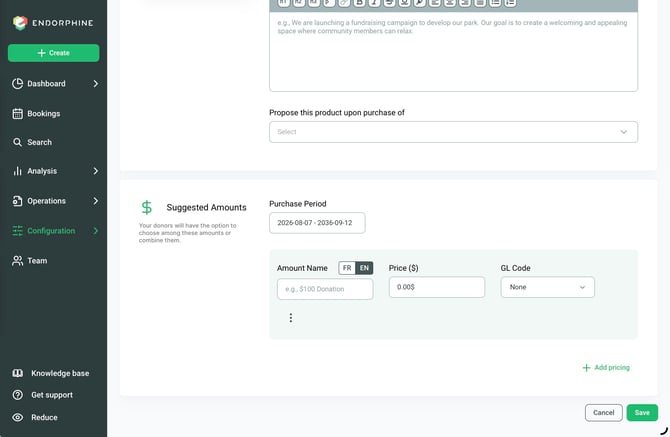
2. Suggested Donation Amounts
Purpose: Provide donors with predefined donation amounts to make the donation process easier.
Configure the following:
- Amount Name: Enter a simple description (e.g., $100 Donation).
- Price ($): Enter the corresponding donation amount.
- GL Code: Select the general ledger (GL) code used to track this specific donation amount.