%20(1).png?width=325&height=82&name=Logo%20Endorphine%20(1)%20(1).png)
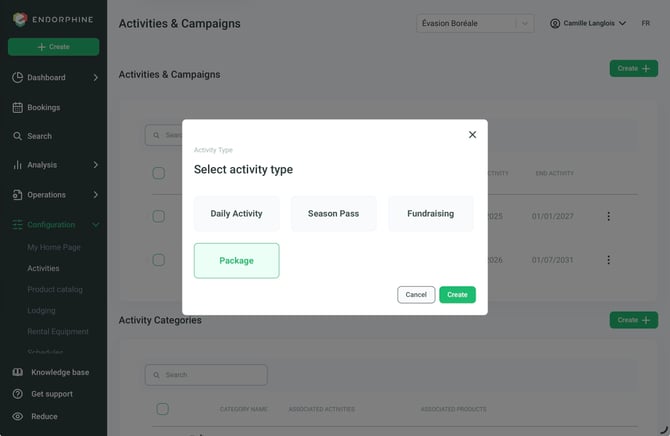
1. Details
Activity Name
Enter a clear and descriptive name for the package.
Example: Mountain Adventure Package.
GL Code
Select the general ledger (GL) code for this package to ensure accurate revenue tracking.
Activity Description
Add a detailed description to inform customers about what is included in the package.
Example:
“This package includes a guided hike, an overnight stay in a mountain hut, and access to the required rental equipment.”
Special Instructions (Optional)
Provide any special instructions for participants (e.g., safety guidelines or required equipment).
You can enable the checkbox to automatically send these instructions to customers.
Photos
Add attractive photos (JPG format, recommended dimensions: 1440 × 960 pixels) to showcase the package.
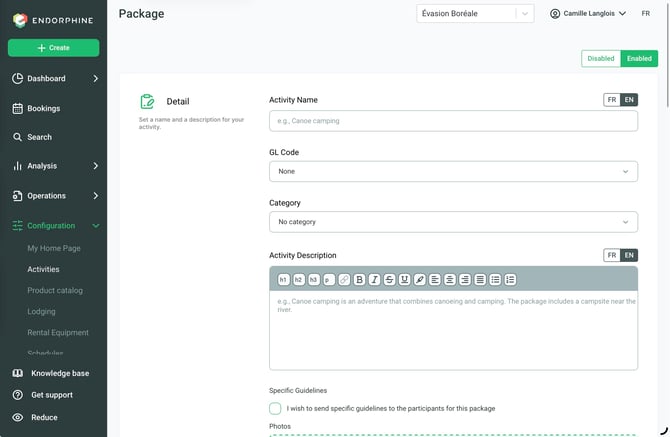
2. Purchase Period
Define the dates during which the package can be purchased.
Example:
January 1 to March 31, 2025.
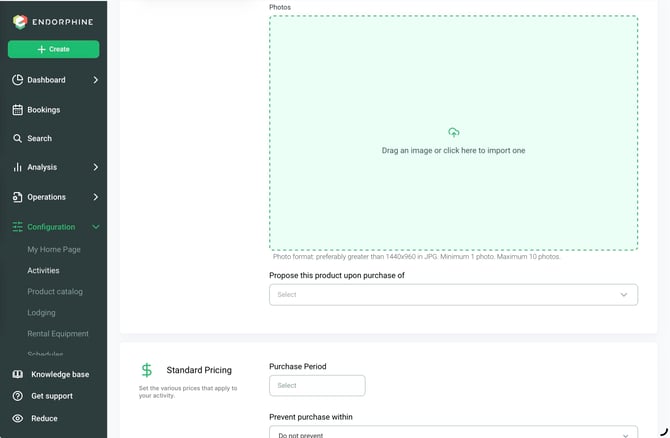
3. Purchase Restrictions
Prevent Purchases Within
Limit how close to the activity customers can purchase the package.
Available options include 1 hour, 2 hours, and more.
4. Pricing
- Price: Enter the amount customers must pay for the package.
- Example: $150.00
- GL Code: Select the general ledger (GL) code associated with this price.
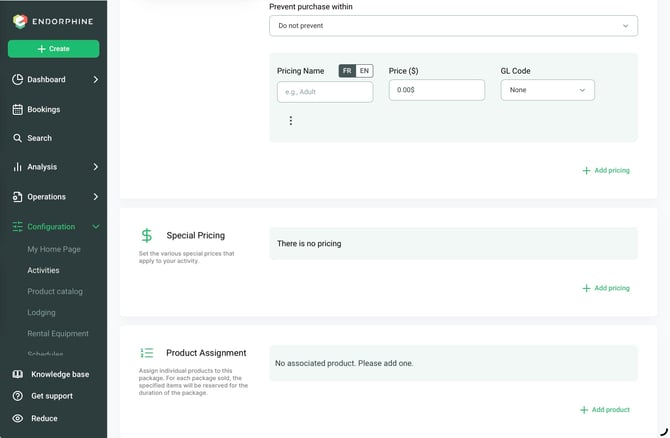
5. Product Assignment
Associate the items included in the package.
Day Pass
Use the dropdown menu to select the activities included in the package.
Example: Guided Hike.
Rental Equipment
Select a specific equipment category (e.g., Snowshoes, Bikes, etc.).
Restrict Selection to Specific Equipment Types
Choose the specific equipment within that category that will be available.
Required Item
Specify whether reserving this equipment is mandatory.
Accommodation
Add the accommodation options included in the package.
6. Schedule Management
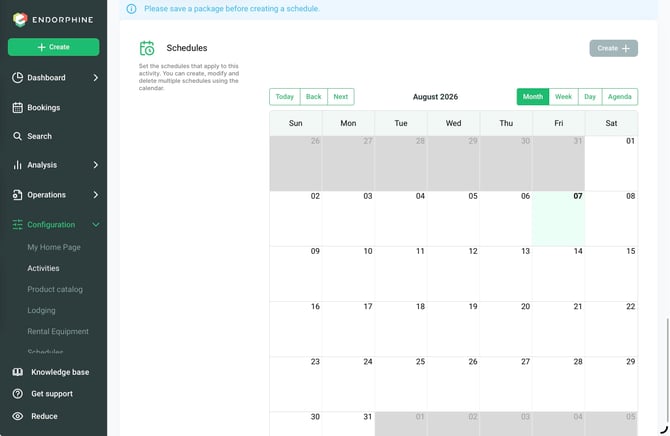
Create a Schedule
Once the package details have been configured, a schedule must be created to allow bookings.
Available Quantity per Time Slot
Specify the number of spots available for each time slot.
Example: 10 spots.
Recurrence
Choose one of the following options:
Do Not Repeat
Define a single activity period by selecting a start and end date and time.
Example:
- Start: January 1, 2025, at 9:00 AM
- End: January 1, 2025, at 5:00 PM
Weekly
Set up a recurring activity schedule by configuring:
- Start Date: January 1, 2025
- End Date: March 31, 2025
- Activity Days: Select the days of the week (e.g., Monday, Wednesday, Friday).
- Time Slots: Define the start and end time for each selected day.
Example:
- Start: 9:00 AM
- End: 5:00 PM
7. Save and Edit
Once the package has been configured, click Save to complete the setup.
You can return at any time to edit or update the package settings.