%20(1).png?width=325&height=82&name=Logo%20Endorphine%20(1)%20(1).png)
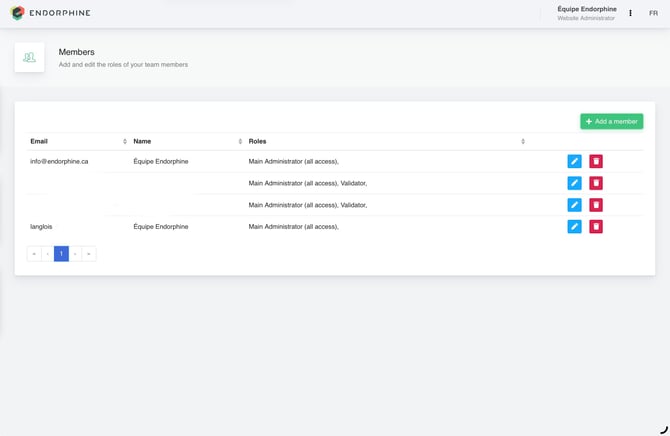
Section: Add a team member
Access the team section
This section allows you to add new members to your team on the Endorphine platform.
Steps to add a member
- Click the Add a team member button on the right side of the screen.
- Enter the member’s information: First name, last name, and email address.
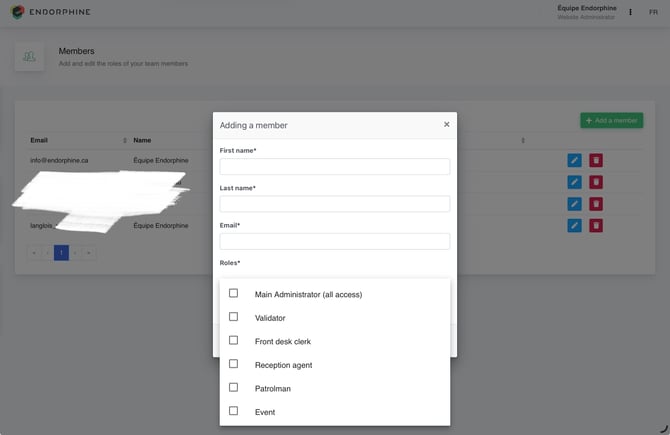
Assign a role
Select the appropriate role for the member from the dropdown menu:
- Main administrator: Full access to all modules.
- Validator: This role allows the user to validate a day pass, season pass, or rental equipment using a QR code.
- Front desk attendant: This role has access to all modules except Analytics, Operations, Configuration, and Team.
- Reception agent: This role has access to all modules except Operations, Configuration, and Team.
- Patroller: This role has access to all modules except Analytics, Operations, Configuration, and Team.
Important
At this stage, the person does not yet have an account on the platform. They will have limited access based on the role assigned to them, but they must create an account to access Endorphine.
Email invitation
After the member has been added, an invitation email will be sent to the email address provided.
The email will contain a link to join the team.
Create an account
The member must follow the link in the email to create an account:
- Click Create an account.
- Re-enter their email address.
- Choose a password.
Account confirmation
After the account has been created, a final automated email will be sent to confirm the account activation.
Once confirmed, the member will have access to the Endorphine platform.