%20(1).png?width=325&height=82&name=Logo%20Endorphine%20(1)%20(1).png)
Search for and create an accommodation
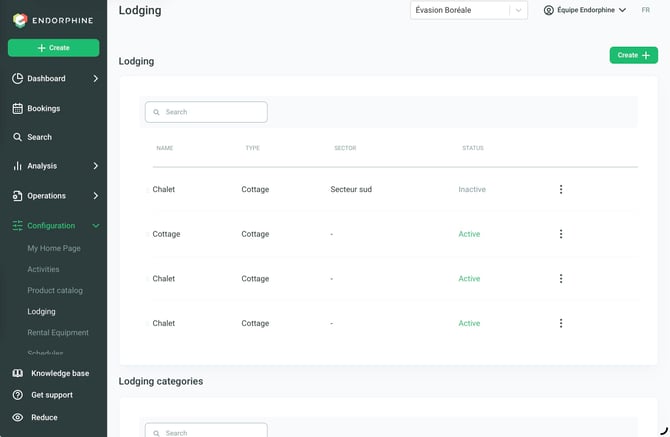
From the left-hand menu, click Configuration, then select Accommodation.
Create an Accommodation
To create a new accommodation, click the green Create (+) button on the right.
Search for an Accommodation
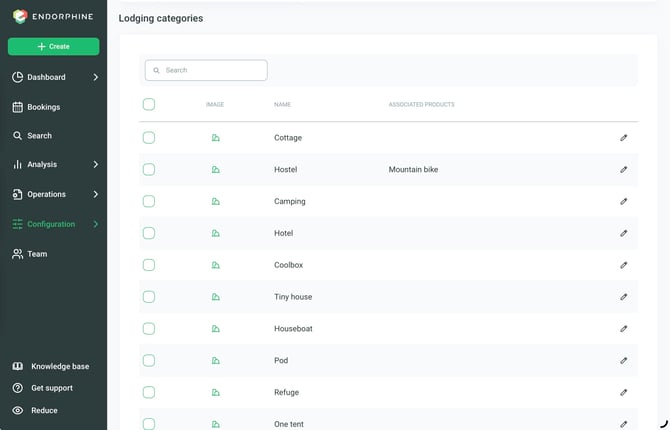
You can also quickly search for an accommodation or an accommodation category using the search bar.
Lodging name
Enter a descriptive name for the lodging.
Example: Lake Cabin, Rustic Cabin.
GL code
Enter the general ledger (GL) code assigned to the lodging for revenue tracking.
Category
Select a category to classify the lodging.
Example: Cabin, Camping, Yurt.
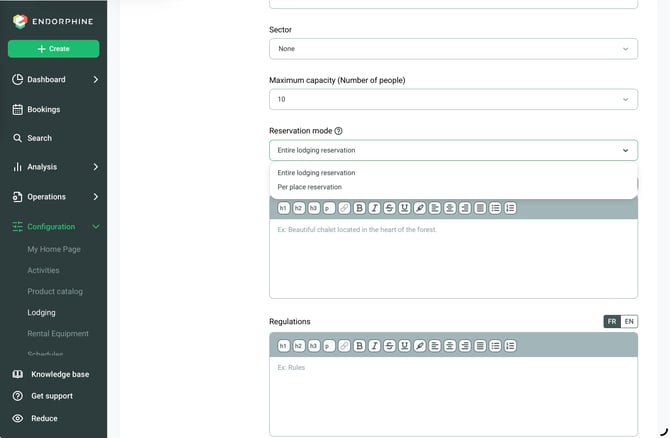
Maximum capacity
Enter the maximum number of guests who can stay in the lodging.
Booking Mode
Two booking modes are available:
Booking by Space
The Booking by Space mode allows multiple customers to book the same accommodation at the same time.
Each customer books only the number of spaces they need, while the remaining spaces stay available for other customers.
Example:
An accommodation has 4 spaces. One customer books 2 spaces. The remaining 2 spaces can still be booked by another customer.
Booking the Entire Accommodation
The Booking the Entire Accommodation mode allows only one reservation to occupy the accommodation for the selected dates.
Once the accommodation is booked, it is no longer available to other customers for that period.
Description
Add a detailed description of the lodging, highlighting its main features.
Rules and instructions
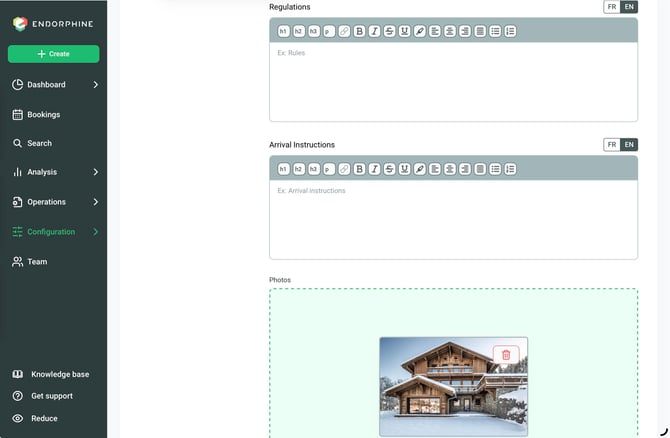
Rules
Specify the rules guests must follow during their stay.
Example: No smoking, pets allowed.
Check-in instructions
Add check-in instructions that will be sent by email after the reservation is made.
Example: The keys will be in a secure lockbox. The access code will be sent 24 hours before arrival.
Lodging photos
Upload between 1 and 10 photos to showcase the lodging.
Required format: 1440 × 960 pixels, JPG.
Example: Photos of the living room, bedrooms, exterior, etc.
Booking times and restrictions
Check-in and check-out times
Set the check-in and check-out times for guests.
Example:
- Check-in: 3:00 PM
- Check-out: 11:00 AM
Prevent bookings within
Use the dropdown menu to prevent bookings made too close to the check-in time.
Example: Prevent bookings within 24 hours.
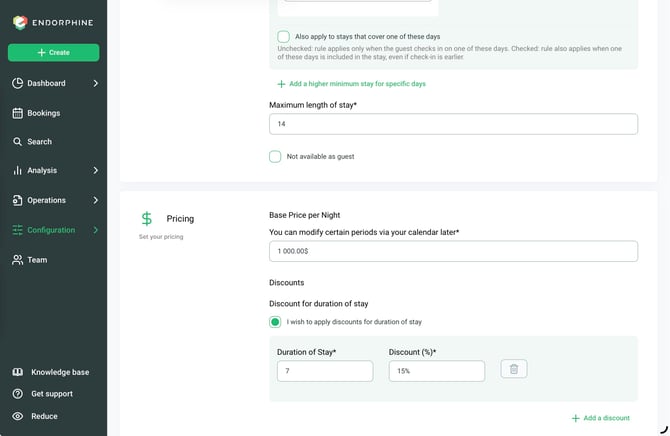
Minimum and maximum stay duration
Set the minimum and maximum stay limits.
Example:
- Minimum stay: 2 nights
- Maximum stay: 14 nights
Base pricing and additional options
Base price per night
Set the standard nightly rate.
Stay duration discounts
Configure automatic percentage discounts based on the number of nights booked.
Example: 10% discount for stays of 7 nights or more.
Promotional codes
Activate or create promotional codes to offer specific discounts. From the left-hand menu, go to Operations, then select Promotional codes.
Additional fees per guest
Apply additional fees per guest above a specified number of guests.
Example: $20 per additional guest per night for more than 4 guests.
Accommodation tax
Specify whether an accommodation tax applies.
Availability and display periods
Rolling availability
Configure how many months in advance the lodging will be displayed as available.
Example: 12 months, 6 months.
Practical example
Context
You offer a cabin for rent with the following characteristics:
- Name: Lake Cabin
- Maximum capacity: 6 guests
- Base price per night: $150
- Discount: 10% for stays of 7 nights or more
- Additional fees: $20 per guest for more than 4 guests
- Accommodation tax: Yes
- Availability: Displayed 12 months in advance
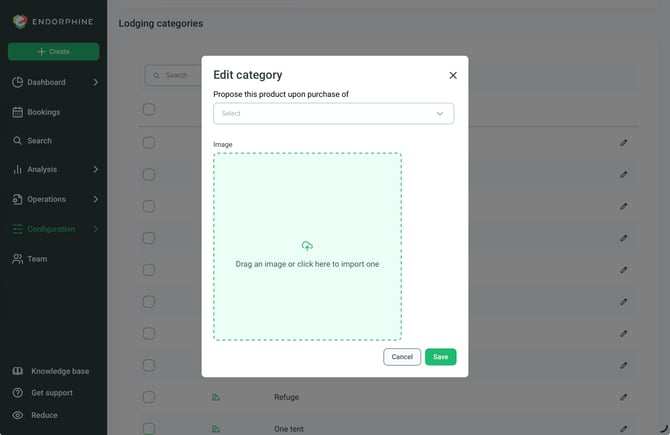
Add an image to a lodging category
- Select the desired lodging category.
- Click Edit image.
- Upload the image you want to use.
- Click Save to save your changes.