%20(1).png?width=325&height=82&name=Logo%20Endorphine%20(1)%20(1).png)
Create an equipment category
-
Search for and Create a Rental Equipment Category or Accessory
In the Rental Equipment section, click Create to create a rental equipment category or accessory.
You can use the search bar to quickly find a rental equipment category or accessory.
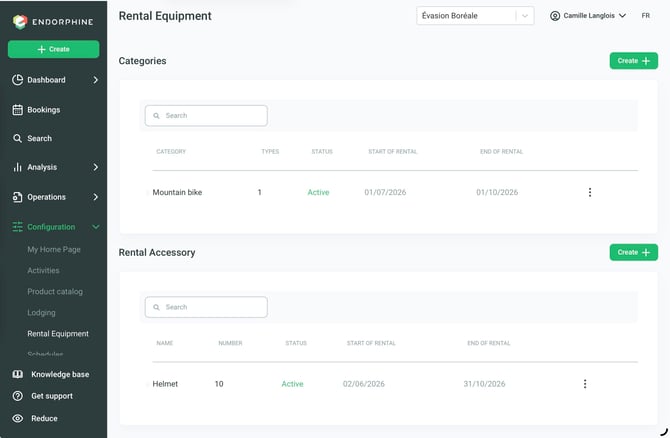
- Enter the category name (e.g., Mountain Bike).
- Add an icon representing the category.
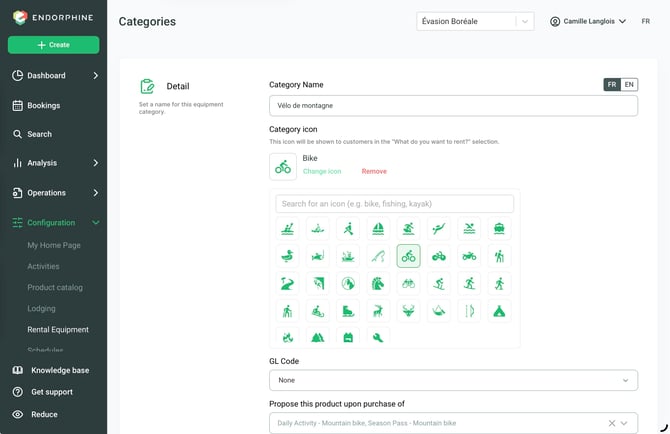
- If needed, enable the option to make this product available for purchase.
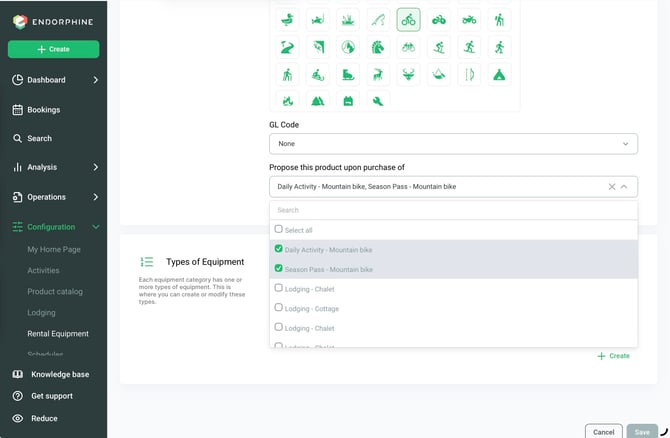
Create an equipment type
- In the Equipment Types section, click Create.
- Enter the following information:
- Equipment name
- Description
- Photo
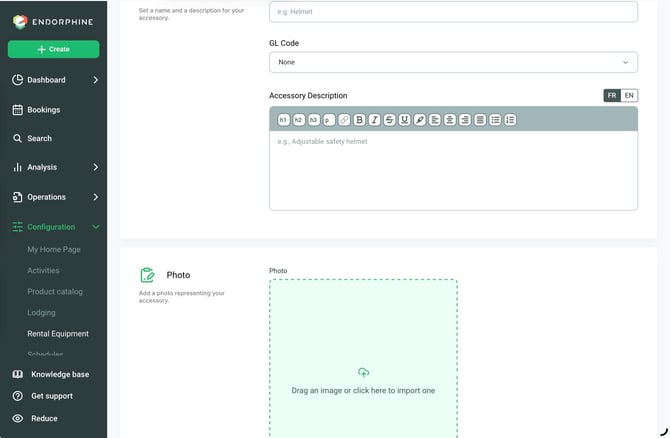
- Configure the equipment settings:
- Available quantity
- Size (if applicable)
- Purchase or rental period
- If you do not want this equipment to be available to guests, enable Not available to guests.
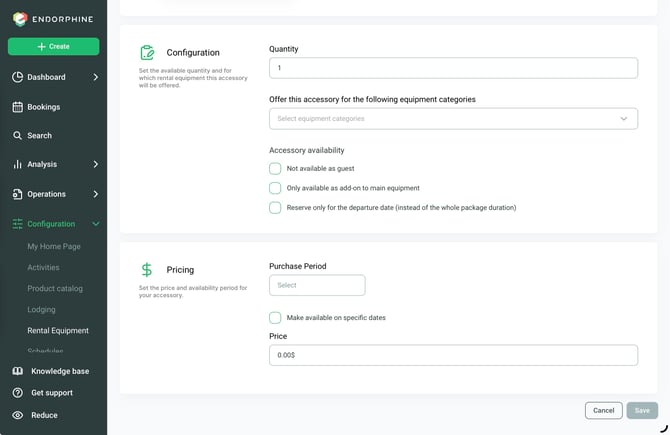
Finalize the configuration
Once all the information has been entered, click Add to save the equipment.
To make your equipment available for rental, you must then create a rental schedule.
- Go to Configuration, then click Schedule.
- Click the Create button at the top of the page.
- Select Create equipment rental schedule.
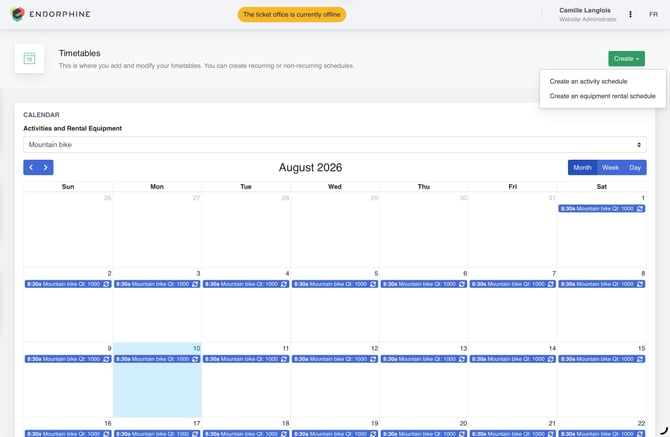
- Enter the required information:
- Rental equipment
- Recurrence
- Rental period
- Start time
- Rental duration
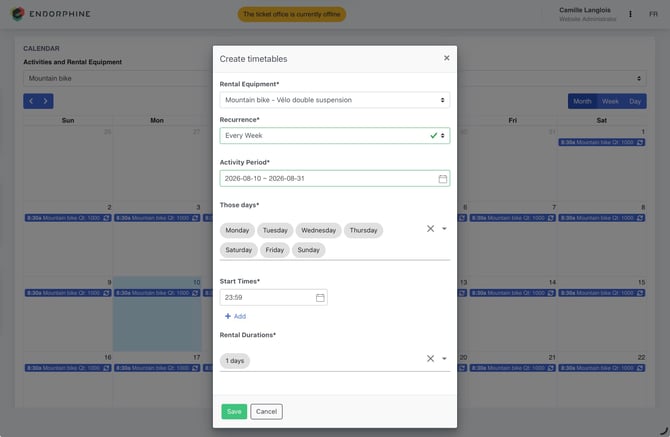
- Click Save to create the schedule.
Your rental equipment will then be available according to the configured schedule.