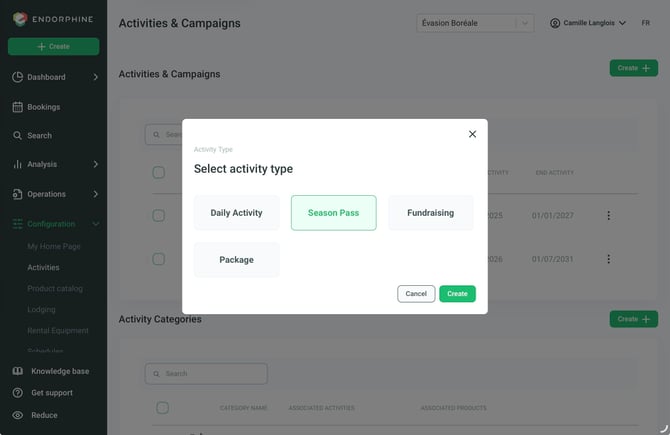
1. Details
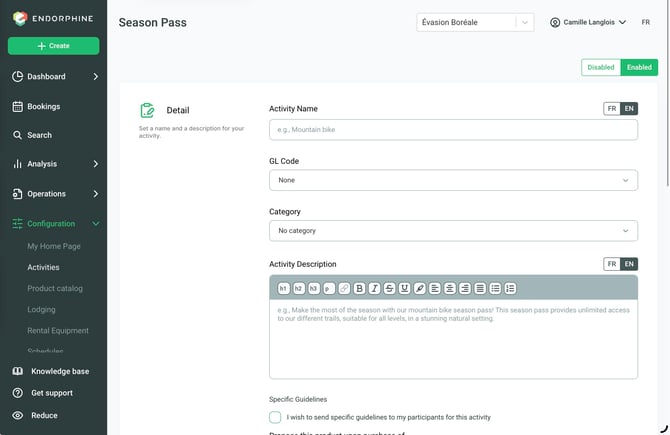
Activity Name
Enter the name of the season pass (e.g., Mountain Bike Season Pass – 2025 Season).
This name will be visible to customers.
GL Code
Select the general ledger (GL) code associated with this season pass for accurate financial tracking.
Activity Description
Provide a clear and engaging description of the season pass. For example:
“Enjoy unlimited access to our mountain bike trails throughout the season. Our trails cater to all skill levels and offer an unforgettable outdoor experience.”
Highlight the benefits for customers, such as unlimited access and flexibility.
Special Instructions (Optional)
If needed, enable this option to automatically send specific instructions or guidelines to customers after their purchase.
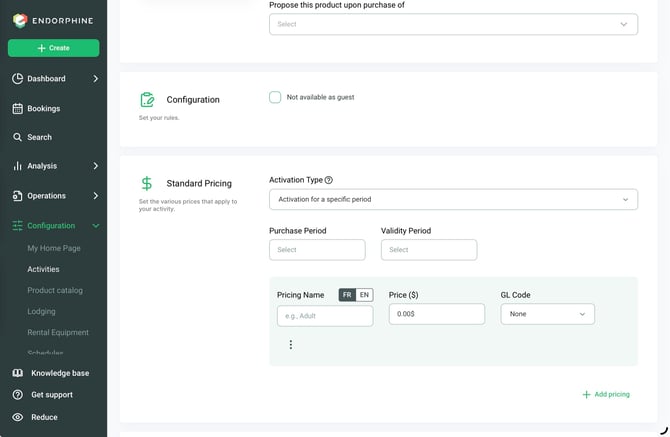
2. Standard Pricing
Purpose: Define the pricing for this season pass and configure its activation settings.
Configure the following:
Season Pass Type
Select one of the following options:
- Activation for a Fixed Period
- Configure a specific validity period for the season pass.
- Example: January 1, 2027, to March 31, 2027.
- Instant Activation for a Fixed Duration
- The season pass becomes active immediately after purchase and remains valid for a specified number of days (e.g., 365 days).
Validity Period
This option is displayed when Activation for a Fixed Period is selected. Define the start and end dates.
Validity Duration
This option is displayed when Instant Activation for a Fixed Duration is selected. Enter the validity period in days.
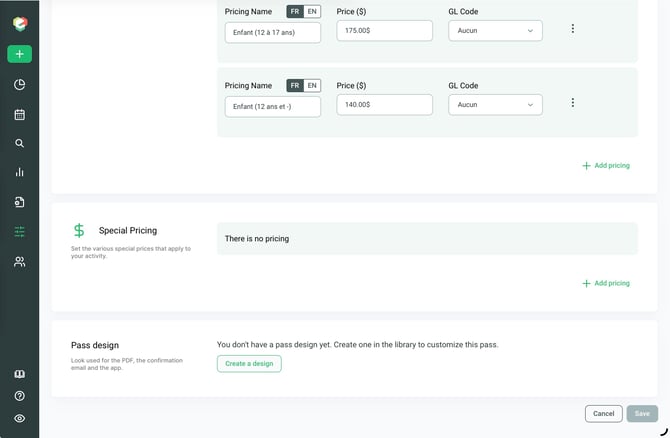
Pricing Name
Enter a description of the pricing option (e.g., Adult, Child, Family).
Price
Enter the season pass price.
GL Code
Optionally, select the corresponding general ledger (GL) code.
Advanced Features
Access these options from the three-dot menu in the pricing section.
Add Pass Holders
Allows you to personalize season passes for each holder (e.g., first and last name of each participant).
When a pricing option includes multiple season passes (such as a family season pass), the number of holders determines how many season passes are generated.
Require Pass Holder Photos
Enable this option to require a photo during the purchase process. This creates a digital season pass with the pass holder’s photo.
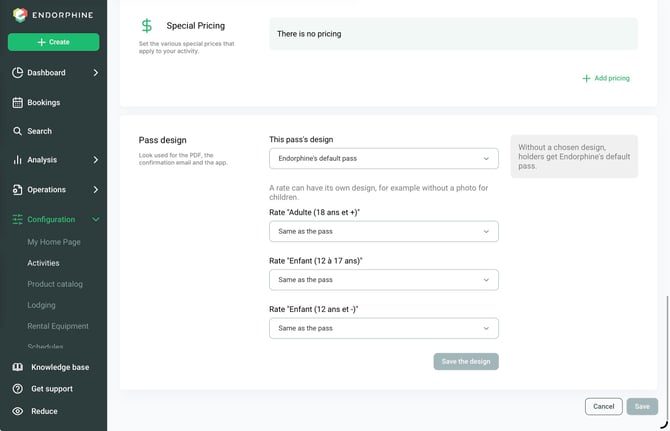
3. Season Pass Design
Create a Season Pass Design from a Season Pass
You can create a season pass design directly from the configuration settings of a season pass.
Steps
- Navigate to the configuration settings of the relevant season pass.
- Click Create Design.
- Follow the steps provided to create your season pass design.
- Once the design has been created, the season pass design details will appear at the bottom of the season pass configuration page.
You can create your season pass design directly within the season pass configuration without having to access the Visual Templates section first.