%20(1).png?width=325&height=82&name=Logo%20Endorphine%20(1)%20(1).png)
Search for and create a product
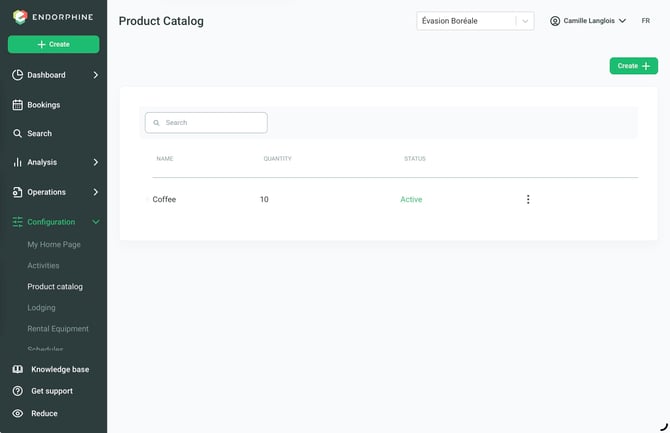
From the left-hand menu, click Configuration, then select the Product Catalog tab.
Search for a Product
To quickly find a product, enter its name in the search bar.
Create a Product
To create a new product, click the Create (+) button on the right.
1. Details
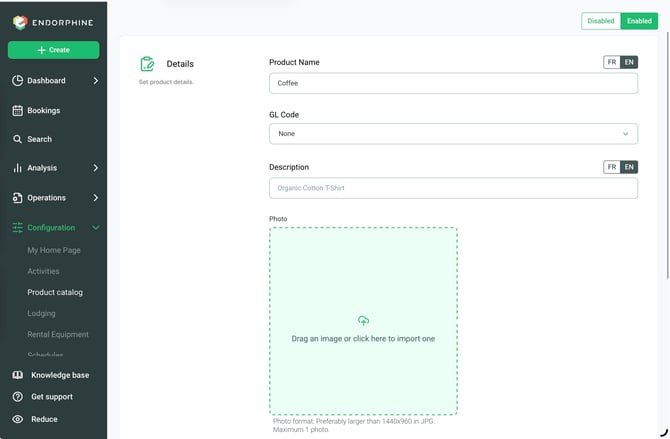
Product name
Enter a clear and descriptive name for the product (e.g., Reusable water bottle or Trail guide).
This name will be visible to customers when adding the product to their purchase.
GL code
Select the general ledger (GL) code associated with this product to ensure accurate financial tracking.
Description
Write a description explaining the product’s purpose or features. For example:
“This reusable water bottle, made from durable materials, is perfect for your outdoor adventures.”
Keep the description concise and engaging to encourage customers to add the product to their cart.
Product photo
Add a representative image in JPG format, with a recommended resolution of 1440 × 960 pixels.
A high-quality photo will make the product more appealing.
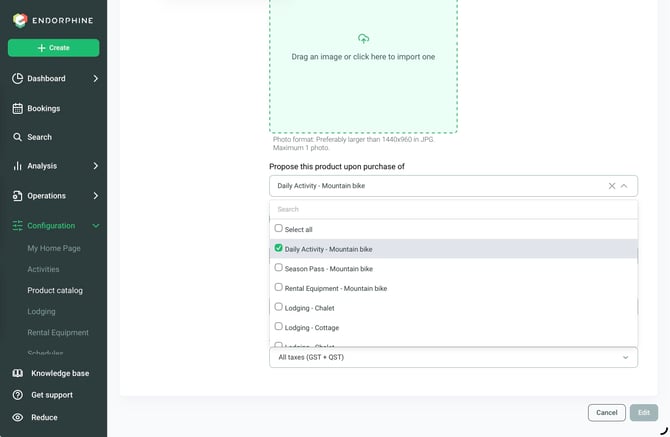
2. Offer this product for purchase of
Dropdown menu
Select the types of activities or services for which this product can be offered as an add-on. Options include:
- Activities
- Equipment rentals
- Lodging
Customization
Choose one or more categories where this product will be offered.
Examples:
- Reusable water bottle → Available with hiking activities or bike rentals.
- Trail guide → Available with lodging reservations.
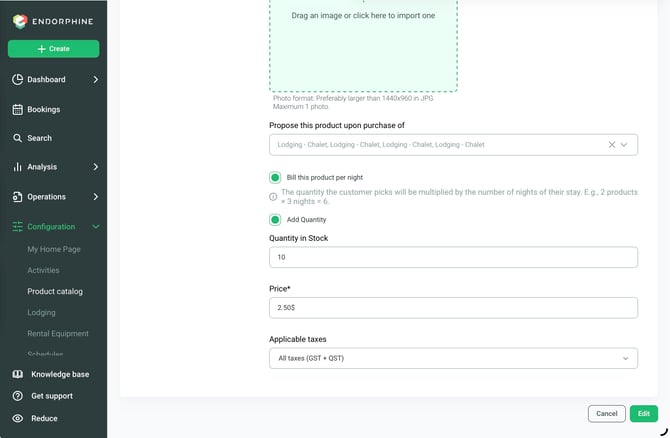
3. Add quantity (Inventory) (Optional)
Purpose: Track and manage inventory for this product.
Example:
Set a limit of 50 reusable water bottles available for sale.
The system will notify you when a product reaches a low quantity or is no longer available.
4. Pricing
Enter the unit price of the product.
Examples:
- Reusable water bottle → $10.00
- Trail guide → $5.00
How the product catalog is used
The Product catalog is not a standalone sales module. It is only used to add complementary products to the purchase of an activity, equipment rental, or lodging.
Example:
A customer books a hiking activity.
During the booking process, the system suggests adding a reusable water bottle or trail guide to the purchase.
The customer can select and pay for the complementary product at the same time as their activity.
5. Applicable taxes
At the bottom of the page, you will find a dropdown menu for taxes. You can select:
- All taxes (GST + QST)
- Provincial tax only (QST)
- Federal tax only (GST)
- No tax
Note: The Product catalog is the only section of the platform that allows products to be offered without taxes.
Bill this product per night
Allow a product to be charged based on the number of nights in the customer’s stay.
Check the Bill this product per night box if you want the product to be charged for each night of the stay.
The quantity selected by the customer will automatically be multiplied by the number of nights in their stay.
Example:
The customer selects 2 products for a 3-night stay.
2 products × 3 nights = 6 units charged
Final steps
Save the product
Click Save once all the information has been completed.
Ongoing management
You can edit, deactivate, or delete products from this section as needed.