%20(1).png?width=325&height=82&name=Logo%20Endorphine%20(1)%20(1).png)
1. Start a new order
Click the + Create button (green button located on the left side of the screen).
Select Create an order.
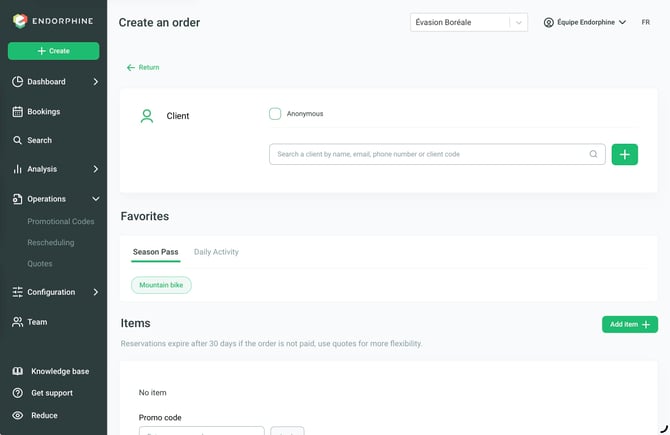
2. Select or create a customer
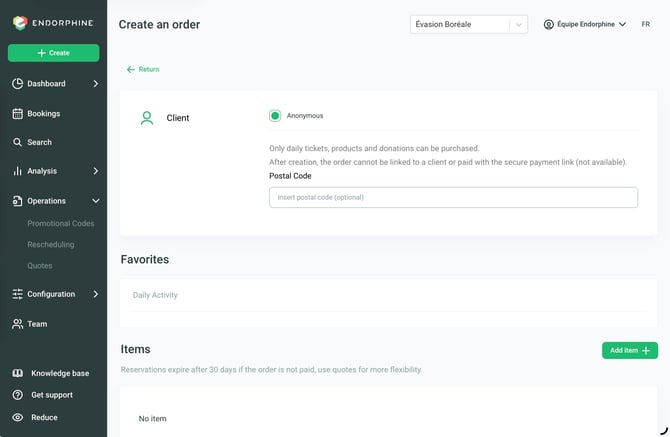
Anonymous customer
If the customer does not want to create an account, select the Anonymous option.
Adding the postal code is optional but recommended for statistical purposes.
Existing customer
To search for a customer who already has an Endorphine account, enter their name, email address, or phone number in the search bar.
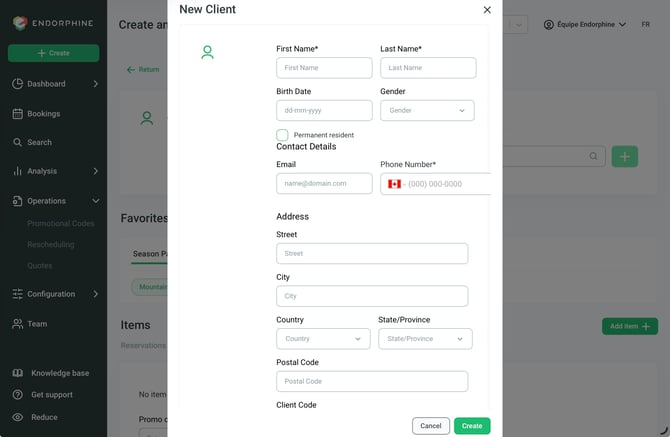
New customer
If the customer does not yet exist in the database:
- Click the green + button on the right.
- Enter the new customer’s information.
- Save the customer profile.
3. Add an item to the order
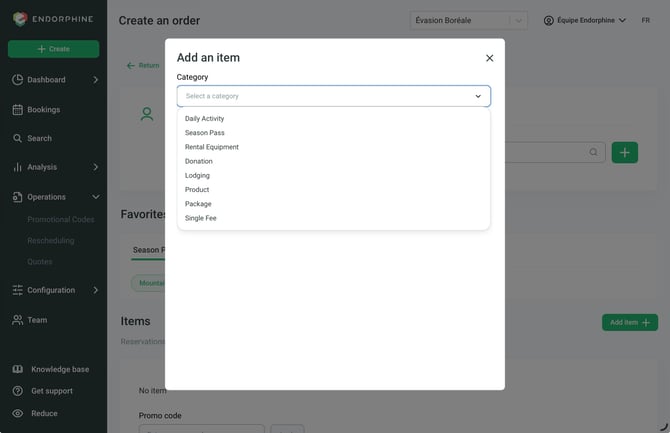
Click the green Add an item button.
Select a category from the drop-down menu.
Choose the item to add to the order.
Enter the required information.
Click Add to confirm the item.
4. Finalize the order
Review the items added to the order.
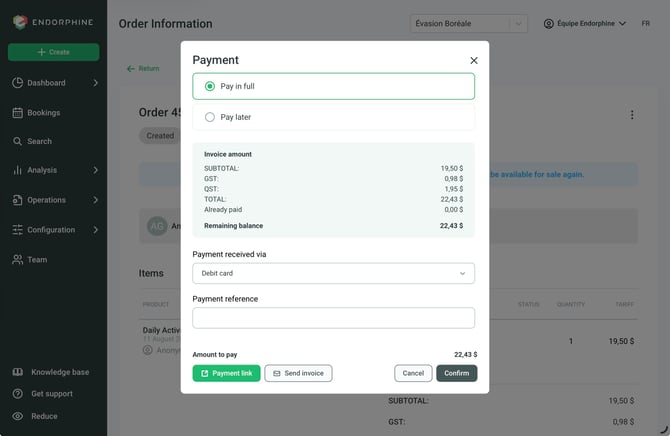
Select the appropriate payment method. If Cash is selected, click Calculate amount and enter the amount received from the customer. The system will then calculate the exact amount of change to return to the customer.
Confirm the transaction to finalize the order.
The order is saved and the payment is associated with the transaction.