%20(1).png?width=325&height=82&name=Logo%20Endorphine%20(1)%20(1).png)
Step 1: Create an order
From the left-hand menu, click the green + Create button.
Select Create an order.
Step 2: Add a comment to the invoice
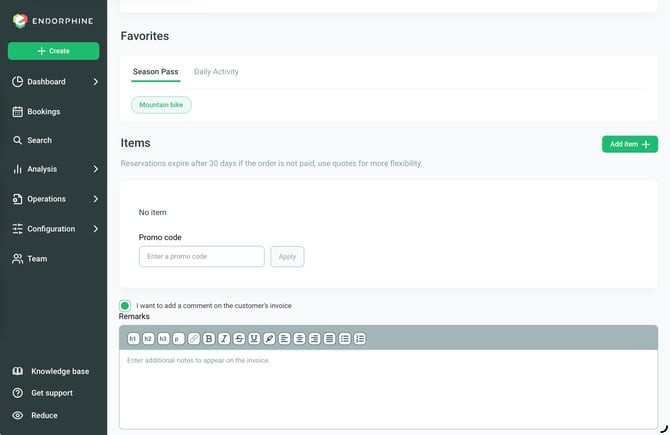
Scroll down to the bottom of the screen.
Select the I want to add a comment to the customer’s invoice option.
Step 3: Write the comment
Enter the comment you want to send to the customer.
Once your message is ready, click Create to submit the order.
Step 4: Review the invoice
Once the payment has been completed, the order status will change to Completed.
Click the three vertical dots on the right side of the order.
Select View invoice.
The comment you entered will appear at the bottom of the customer’s invoice. The invoice will then be automatically sent to the customer by email.