%20(1).png?width=325&height=82&name=Logo%20Endorphine%20(1)%20(1).png)
To validate a day pass, season pass, or equipment rental, you must have the Validator role.
Access the validation tool
From your mobile phone, tablet, or computer, go to:
We recommend using a device equipped with a camera so that tickets can be scanned directly.
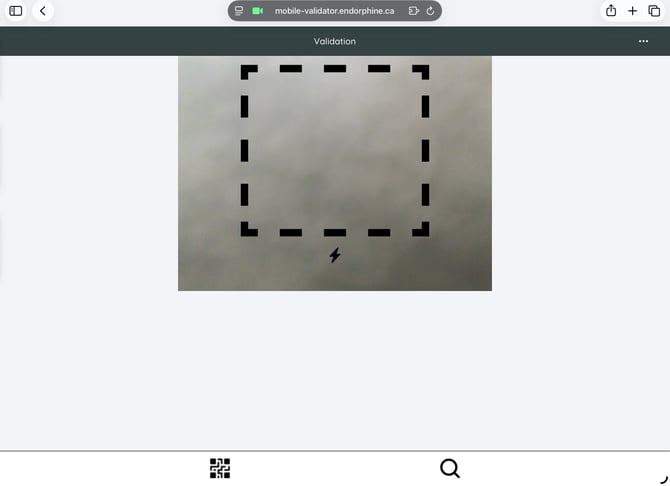
Validate a ticket
Two validation methods are available:
Option 1 – Scan the ticket
Use your device’s camera to scan the ticket’s code.
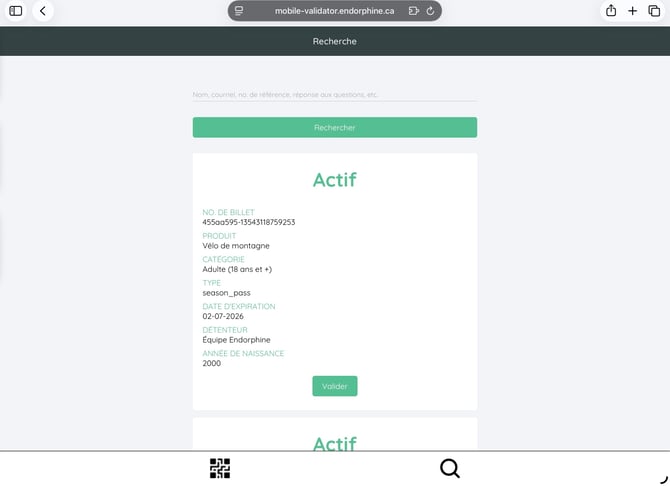
Option 2 – Search for the ticket
Click the search icon (🔍) at the bottom of the screen, then search for the customer’s information.
View a ticket’s status
Once the ticket is found, you can view its status:
- Active: The ticket is valid and can be used.
- Expired: The ticket is no longer valid.
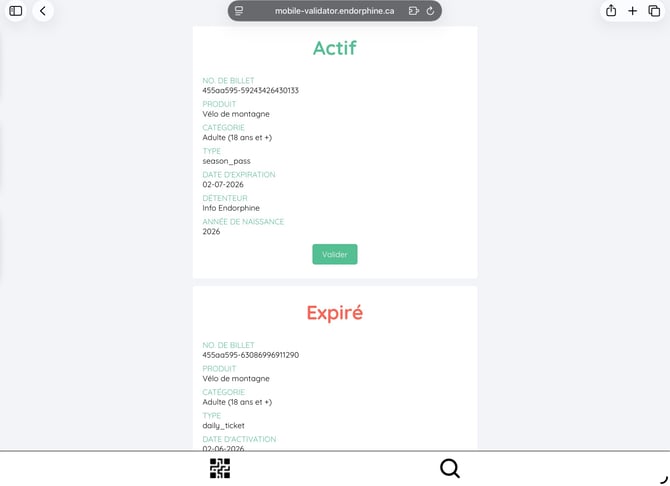
You can also view expired tickets.
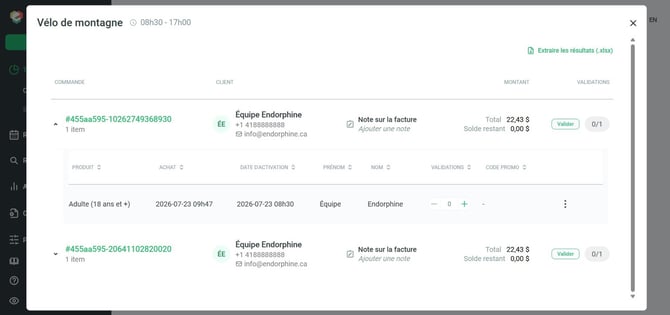
You can also remove a ticket’s validation from the operational dashboard.