%20(1).png?width=325&height=82&name=Logo%20Endorphine%20(1)%20(1).png)
Important: Before configuring self-service, make sure your payment terminal is connected. See the articles Connect a Square Terminal to Endorphine (point of sale and self-service) or Connect a Nuvei Terminal to Endorphine (point of sale and self-service).
Connect a Square Terminal to Endorphine
Connect a Nuvei Terminal to Endorphine
Configuration
- Go to Settings > Payment.
- Make sure your Square or Nuvei terminal is connected.
- In the Self-service section, click the three vertical dots (⋮).
- Select Copy URL.
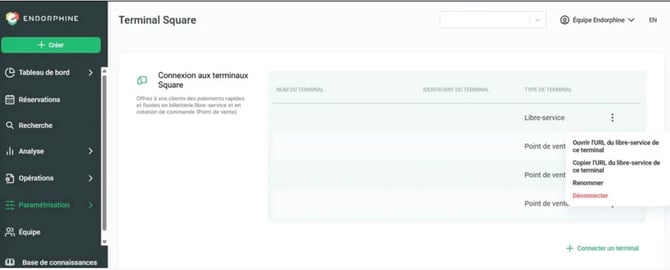
- Open the web browser on the iPad, tablet, or other device that will be used as the self-service kiosk.
- Paste the URL into the address bar and open the page.
Self-service is now ready for your customers to use.
How it works
Enhanced security
Self-service includes several security measures to protect customer data:
- Customers have 10 minutes to complete their reservation instead of 30 minutes.
- After 1 minute of inactivity, a message appears asking whether the customer is still present.
- If no interaction is detected after this additional minute, the session is automatically reset and all entered information is deleted. The customer will have to start their reservation again.
Special considerations for ZECs
For ZECs, customers can still log in to their account to complete their registration.
Best practices
For a better user experience, we recommend enabling kiosk mode on the iPad. This mode prevents users from leaving the browser or accessing other websites while using self-service.