%20(1).png?width=325&height=82&name=Logo%20Endorphine%20(1)%20(1).png)
Create a quote
Access quote creation
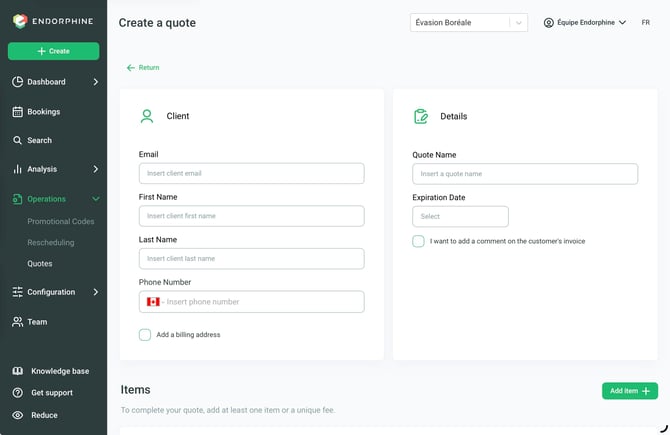
To get started, click the + Create button located at the top left of the page.
Add customer information
Enter your customer’s information:
- First name
- Last name
- Phone number
You can also add a billing address if needed.
Quote details
Quote name: Enter a descriptive name for the quote.
Expiration date: Select the deadline until which the quote is valid.
Note: The quote must be confirmed by the customer or administrator before this date. Otherwise, the reserved items will become available again and the quote will expire.
Add comments
If necessary, you can add comments to provide additional information or specifications.
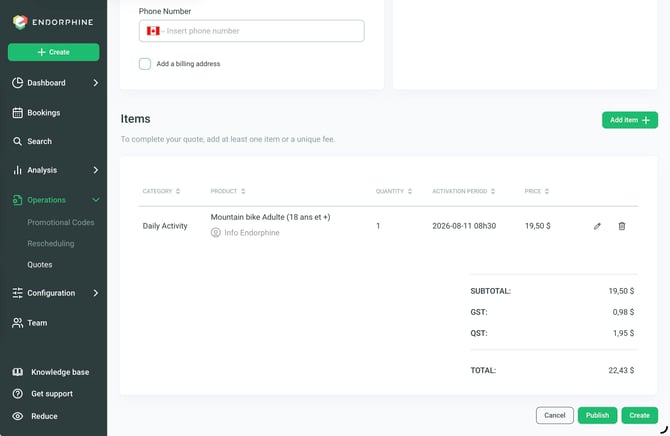
Add product lines
You can add the following items to the quote:
- Day passes
- Rental equipment
- Lodging
- Products
- One-time fees
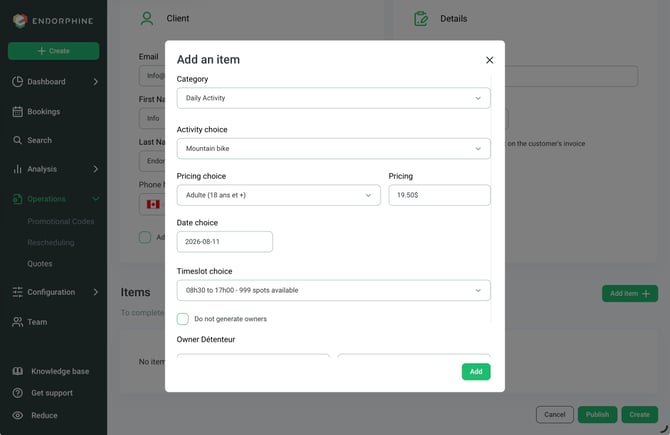
For each item added, you will have several options:
Pricing type: Select the applicable pricing type for the item.
Price adjustment: Adjust the price if necessary.
Booking dates: Select the specific dates or time slots applicable to the item.
Lodging
If lodging is added to the quote, you can specify different types of accommodation taxes based on the customer type.
One-time fees
Add a one-time fee if needed. This fee will be a single amount that you can customize by giving it any name you want on the invoice.
Finalize the quote
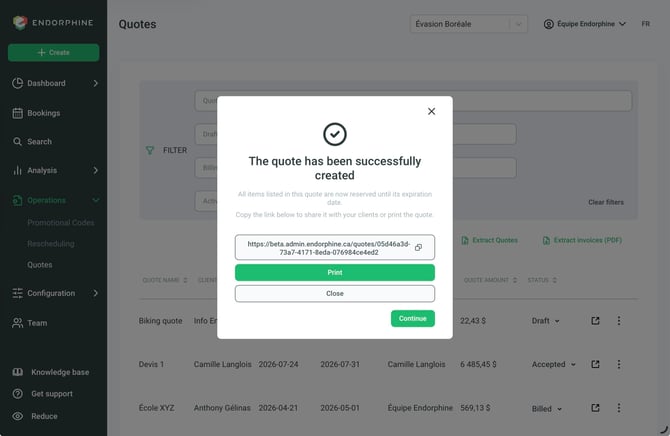
Once all information has been added and verified, click Save to save the quote.
Note: A quote is only confirmed when the customer or administrator approves it before the expiration date. Otherwise, the reserved items will become available to other customers and the quote will expire.
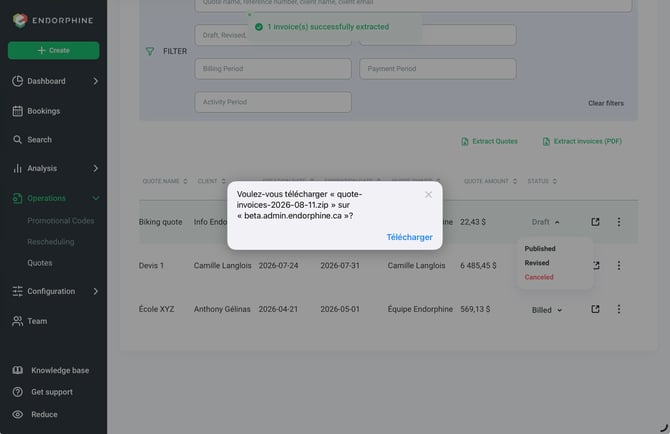
Quote statuses
Published
The quote is pending review. It has been created but requires review by a manager before it can be confirmed.
Reviewed
The quote has been reviewed by a manager or administrator. Changes have been made and it is ready to be accepted or sent to the customer for approval.
Accepted
The quote has been accepted by the customer or administrator. The reservation is now official, and the quote will no longer expire. The reserved items are confirmed and will no longer be available to other customers.
Invoiced
The invoice has been generated. At this stage, you must:
- Select the invoice date.
- Decide whether the invoice should be sent to the customer.
- Specify the invoice due date.
Paid
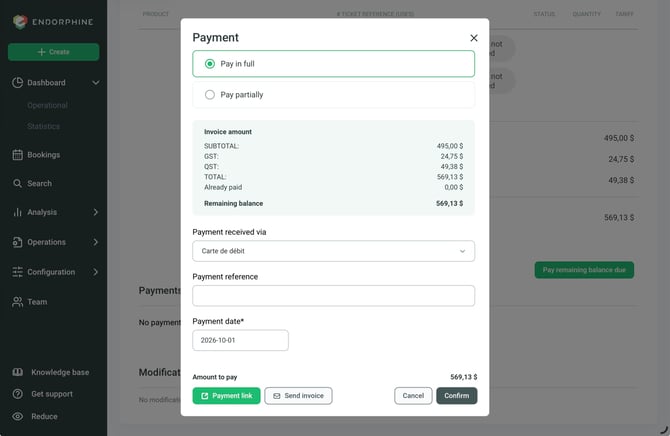
The customer has paid the invoice, either directly by credit card or using another payment method.
You can specify the payment method used, such as:
- Check
- Debit
- Bank transfer
- Other payment method
Payment Date
When processing a payment, you can enter the date on which the payment was made.
Export invoices as PDF
You can generate a PDF file containing the invoices associated with your quotes.
- Go to the Quotes section.
- Click Export invoices (PDF).
- The system will automatically generate a PDF file containing the invoices, which you can save or print.