%20(1).png?width=325&height=82&name=Logo%20Endorphine%20(1)%20(1).png)
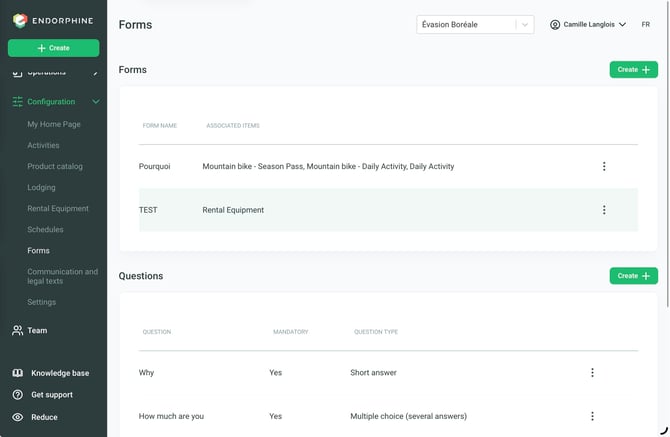
From the left-hand menu, go to Configuration and select Forms.
To use this feature, you must first create questions, then group them into a form associated with the relevant activities or equipment.
Creating Questions
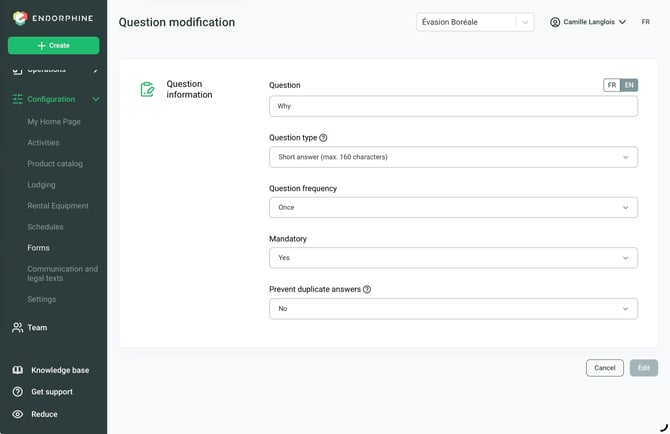
- In the Questions section, click Create (green button on the right).
- Enter the question or statement to display to customers.
- Select the question type:
- Short Answer: A free-text field for customers (maximum 160 characters).
- Single Choice: Allows customers to select one answer from a list of options.
- Multiple Choice: Allows customers to select one or more answers from a list of options.
- Date: Allows customers to select a date.
-
Attachment : Allows the customer to upload a file during their booking or request. For example, the customer can attach a copy of their vehicle registration or any other required document.
Add answer choices if the question requires selectable options.
- Define the question frequency:
- Once per purchase
- For each ticket, rental, or registration
- Indicate whether the question is required by selecting Yes or No from the dropdown menu.
- Click Save to create the question.
Creating a Form
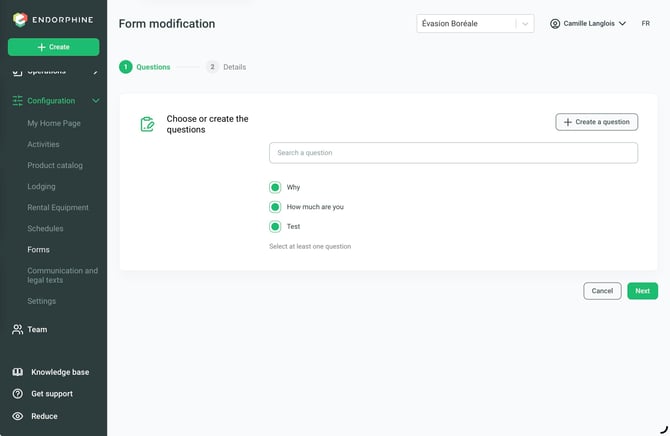
- Click Create Form.
- Enter a name for the form to facilitate internal management.
- Associate activities and/or equipment with this form.
- Select the previously created questions and define their display order.
- Click Save to create the form.
Once saved, the form will be displayed to customers when booking the associated activity or rental equipment.
Form responses are stored in each customer’s profile. By exporting data to Excel from the Search section (Ticket, Season Pass, or Equipment Rental) and applying filters, such as purchase or activation period, you can access all responses and perform a bulk export.
Creating Consents
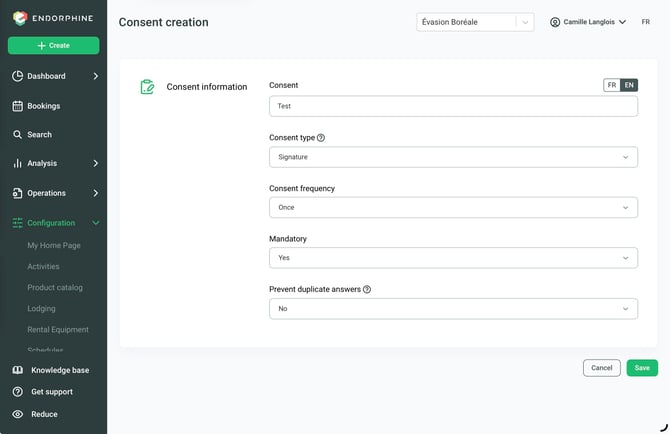
- Click Create Consent.
- In the Consent Information section, enter the consent text and select the consent type:
- Signature: Customers must provide an electronic signature to confirm their consent.
- Information: Allows you to provide customers with information, terms, or policies without requiring a signature.
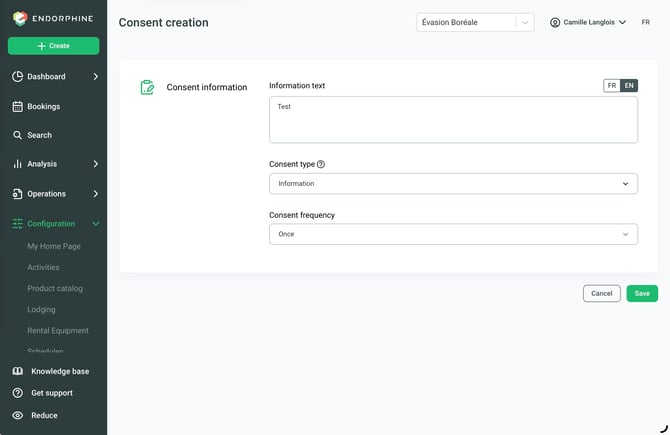
- Select the consent frequency:
- Once
- For each ticket
- Click Save to save the consent.
Viewing and Updating Forms
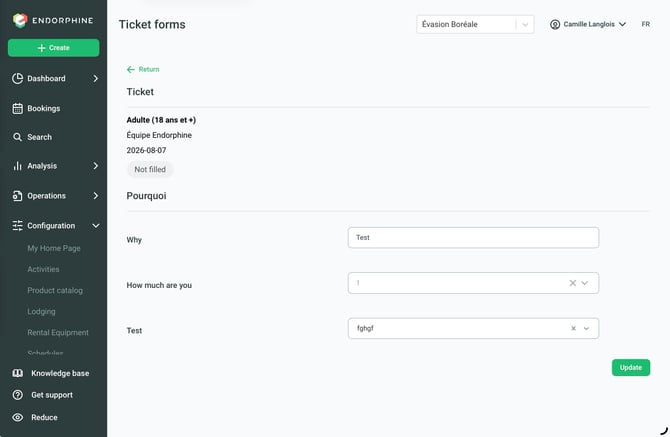
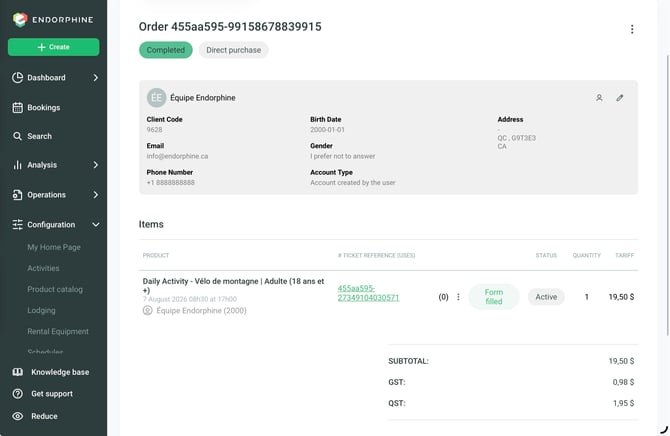
When creating an order or viewing a reservation, you can check whether the associated form is complete or incomplete.
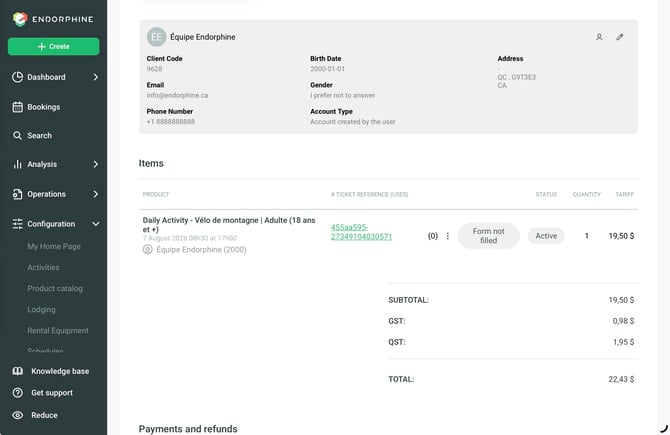
If needed, the form can be completed directly with the customer during order creation.
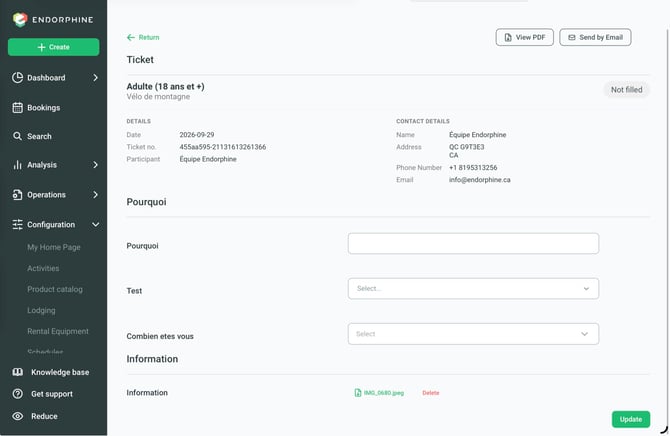
You can also view answers previously provided by the customer. This information is available in the Order Information section.
You can also extract the PDF file by clicking View PDF.