%20(1).png?width=325&height=82&name=Logo%20Endorphine%20(1)%20(1).png)
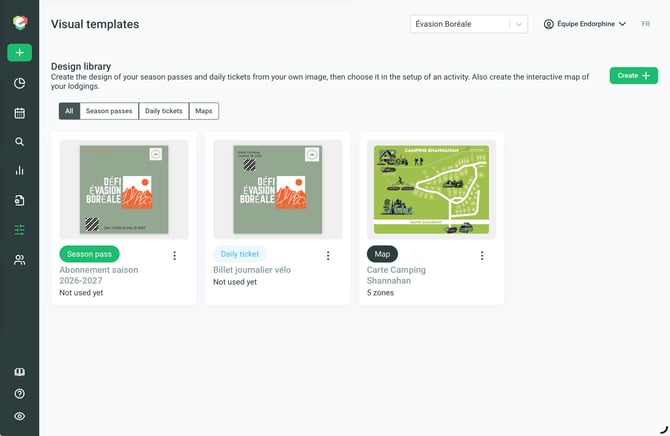
The Visual Templates section, accessible from the Configuration menu, allows you to create and manage your design library.
You can create custom visuals for your daily tickets and season passes using your own images. These designs can then be selected in an activity’s configuration settings.
You can also create interactive maps to locate accommodations, such as campsites and cabins.
1. Create a Daily Ticket Design
Step 1 — Access the design creation menu
- From the Configuration menu, click Visual Templates.
- Click + Create on the right side of the screen.
- Select Daily Ticket Design.
Step 2 — Upload the background image
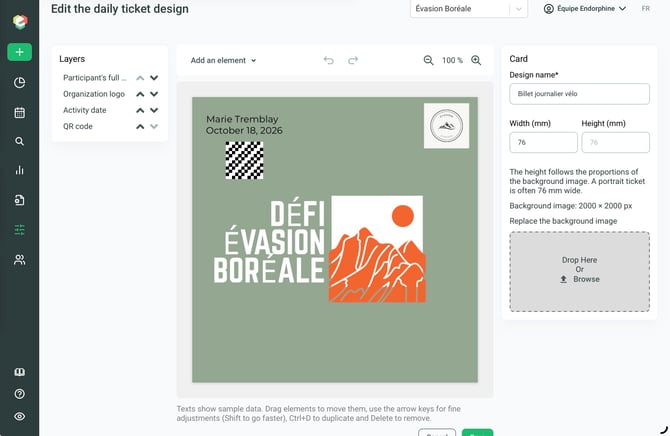
Upload or drag and drop the image you want to use as the background for your daily ticket.
Step 3 — Name your design
Enter a name that will help you easily identify your design in your library.
Step 4 — Add elements to your design
Add and position the elements you want to include in your visual. The available elements are:
- Participant’s Full Name
- Participant’s First Name
- Participant’s Last Name
- Activity Name
- Package Name
- Price
- Team Name
- Activity Date
- Time Slot
- Reference Number
- Form Response
- Free Text
- QR Code
- Organization Logo
- Image
- Colored Rectangle
Step 5 — Save your design
Once your design is complete, save your changes.
Your design will then be available in your visual template library.
2. Create a Season Pass Design
Step 1 — Access the design creation menu
- From the Configuration menu, click Visual Templates.
- Click + Create on the right side of the screen.
- Select Season Pass Design.
Step 2 — Upload the background image
Upload or drag and drop the image you want to use as the background for your season pass.
Step 3 — Name your design
Enter a name that will help you easily identify your design in the library.
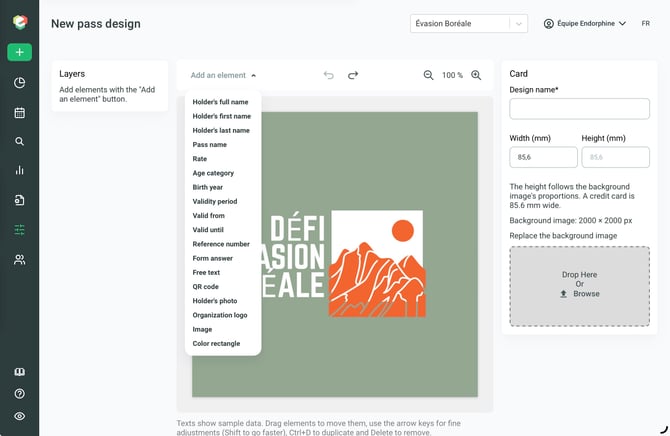
Step 4 — Add elements to your design
Add and position the elements you want to include in your visual. The available elements are:
- Participant’s Full Name
- Participant’s First Name
- Participant’s Last Name
- Activity Name
- Package Name
- Price
- Team Name
- Activity Date
- Time Slot
- Reference Number
- Form Response
- Free Text
- QR Code
- Organization Logo
- Image
- Colored Rectangle
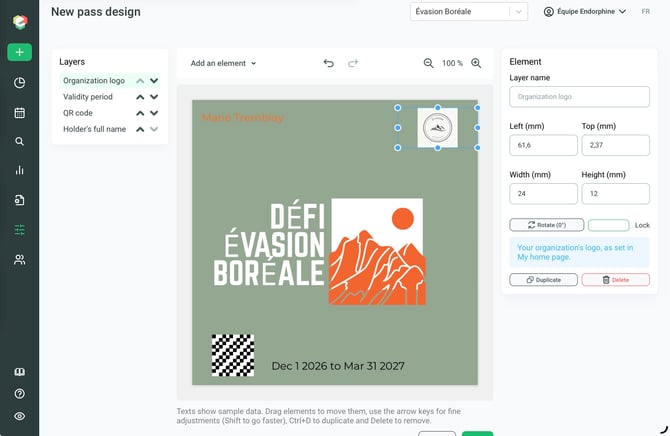
Step 5 — Save your design
Once your design is complete, save your changes.
Your design will then be available in your visual template library.
3. Create an Interactive Accommodation Map
Step 1 — Access the map creation menu
- From the Configuration menu, click Visual Templates.
- Click + Create on the right side of the screen.
- Select Accommodation Maps.
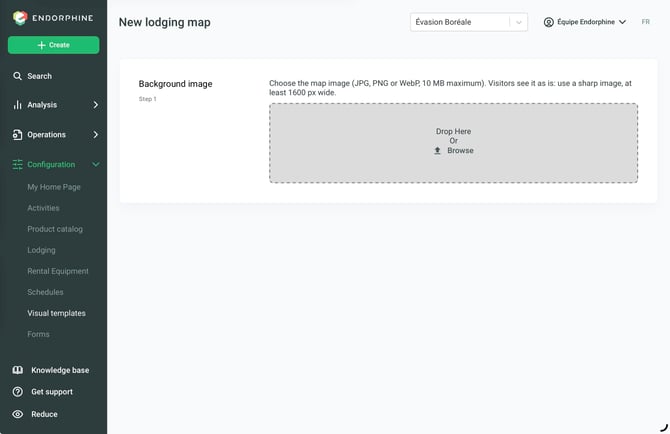
Step 2 — Upload the background image
Upload or drag and drop the image you want to use as the background for your interactive map.
Step 3 — Name your map
Enter a name that will help you easily identify your map in the library.
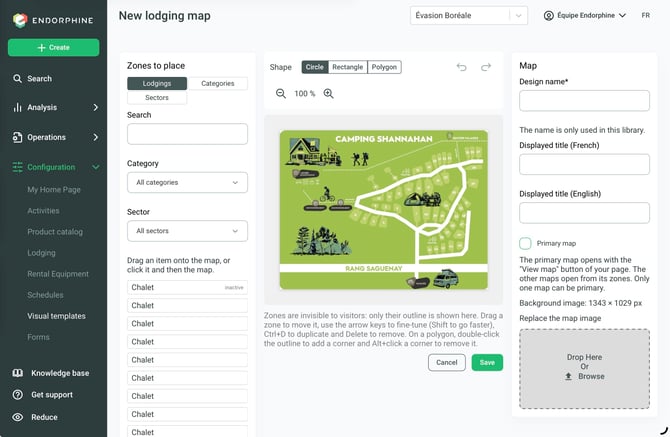
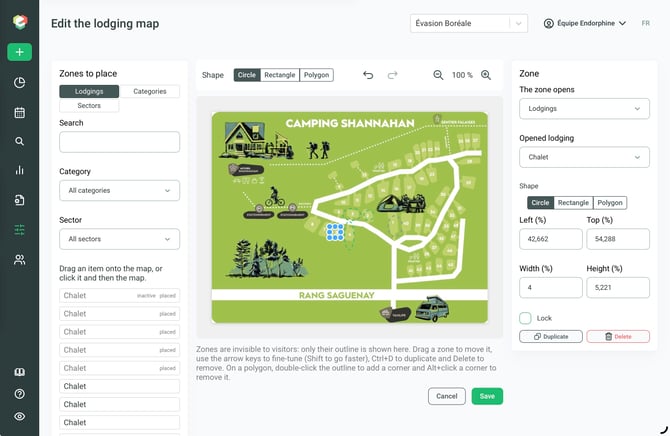
Step 4 — Add and position accommodations
- Locate the different accommodation types listed on the left side of the screen, including campsites and cabins.
- Click the accommodations you want to add to your interactive map.
- Position each accommodation in the corresponding location on your background image.
Make sure each accommodation is placed in the correct location so users can easily identify it on the map.
Step 5 — Save your map
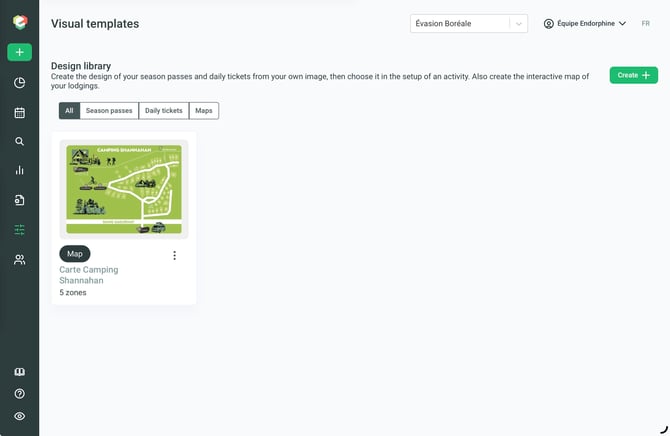
Once your interactive map is complete, save your changes.
Your map will then be available in your visual template library.
Key Takeaways
The Visual Templates section allows you to manage your custom designs and accommodation maps in one central location.
- Daily Tickets: Create custom visuals for your daily tickets.
- Season Passes: Create customized visuals for your season passes.
- Accommodation Maps: Position accommodations on an interactive map.
For daily tickets and season passes, remember to select your preferred design in the configuration settings of the relevant activity.