%20(1).png?width=325&height=82&name=Logo%20Endorphine%20(1)%20(1).png)
Before creating schedules, make sure your Activities or Rental Equipment have already been created in their respective sections.
1. Create a schedule
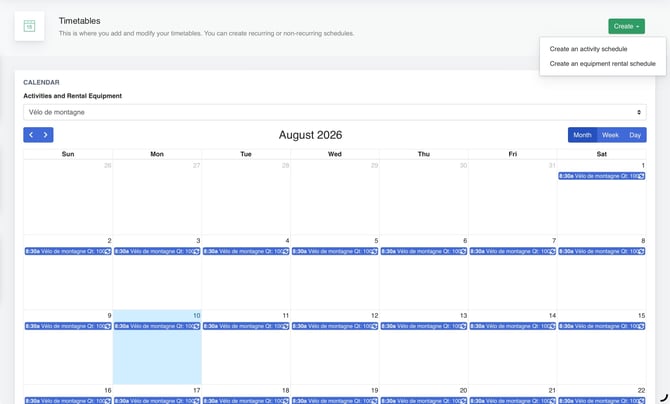
Step 1: Access the schedule creation
Click the Create button at the top right of the section.
Step 2: Schedule type
Select the type of schedule you want to configure:
- Activity schedule
- Equipment rental schedule
2. Schedule for daily activities
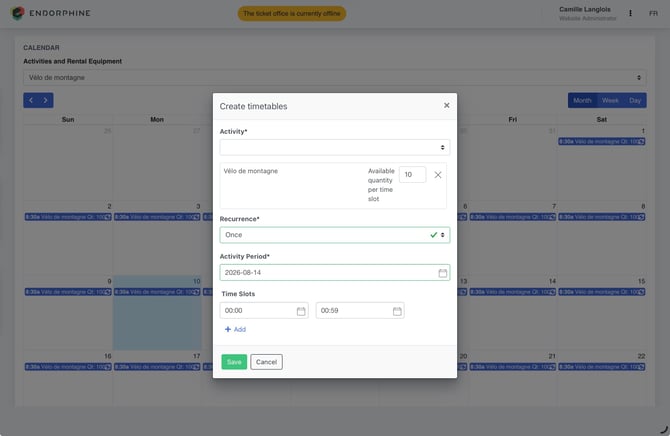
Select the activity
Select an existing activity for which you want to configure time slots.
Available quantity per time slot
Enter the maximum number of participants allowed for each time slot.
Example: 15 participants for a kayaking session.
3. Recurrence options
One-time recurrence
Ideal for one-time events.
Define:
- Activity period: Start and end date and time.
Weekly recurrence
Ideal for recurring activities.
Activity period
Enter a start date and an end date.
Available days
Select the days of the week when the activity will be available (e.g., Monday, Wednesday, Friday).
Time slots
Define the start and end times.
You can configure multiple time slots for the same day.
4. Schedule for equipment rentals
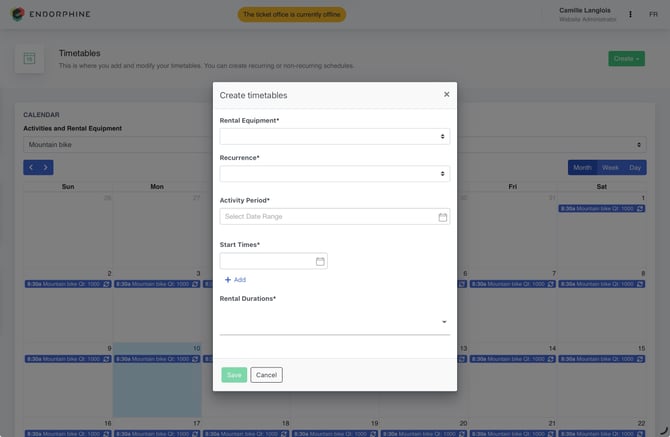
Select the equipment
Select an existing piece of equipment for which you want to create time slots.
Available quantity per time slot
Enter the maximum number of units available for rental during each time slot.
Example: 5 kayaks available between 9:00 AM and 12:00 PM.
5. Settings common to activities and equipment
Multiple time slots
You can configure multiple time slots for the same day or activity.
Example:
- Time slot 1: 9:00 AM to 12:00 PM
- Time slot 2: 1:00 PM to 4:00 PM
Flexibility and customization
Each activity or piece of equipment can have separate time slots tailored to customers’ needs.
Modify or delete a schedule
In the Activities or Rental Equipment selection, choose the activity or equipment for which you want to modify or delete a schedule.
Click the schedule corresponding to the day you want to modify or delete.
Modify a schedule
- Click Edit.
- Make the necessary changes.
- Click Save.
Choose between:
- This schedule only
- All [day] schedules in the series (e.g., all Wednesdays)
Delete a schedule
Select one of the following options:
- This schedule only
- All [day] schedules in the series (e.g., all Tuesdays)
- All schedules in the series (delete the entire schedule series)