%20(1).png?width=325&height=82&name=Logo%20Endorphine%20(1)%20(1).png)
Steps
- Go to Search.
- Click the Tickets tab for a daily ticket or Subscriptions for a membership card or season pass.
- Find the user’s transaction.
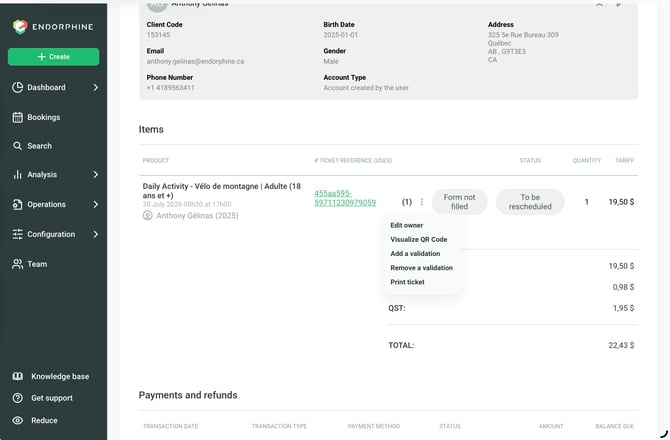
- Click the three vertical dots on the right.
- Select Print ticket or Print subscription.
A new page will open where you can view and print the ticket or subscription directly from your browser.
The three vertical dots can also be accessed:
- on the ticket information page;
- on the subscription information page;
- from the reference number.
Add the holder’s photo
This feature is available for subscriptions.
Steps
- Go to Search.
- Click the Subscriptions tab.
- Find and select the user’s subscription.
- You will be redirected to the Subscription Information page.
- Click the three vertical dots in the top-right corner.
- Select Add photo.
- A new page will open. Click the three vertical dots, then select Add photo.
Change the holder’s photo
Steps
- Go to Search.
- Click the Subscriptions tab.
- Find and select the user’s subscription.
- You will be redirected to the Subscription Information page.
- Click the three vertical dots next to the transaction reference number.
- Select Change holder photo.
- A new page will open. Click the three vertical dots, then select Change holder photo.