%20(1).png?width=325&height=82&name=Logo%20Endorphine%20(1)%20(1).png)
Step 1 – Search for the customer or order
From the left-hand menu, go to Search.
Step 2 – Perform a search
Enter the customer’s name or any other relevant information in the search field to find the desired order.
Step 3 – Open the order
If you are in the customer’s profile, first open the customer profile, then select the relevant order.
If you are in Search > Orders, open the order directly.
Step 4 – Access the modification or refund options
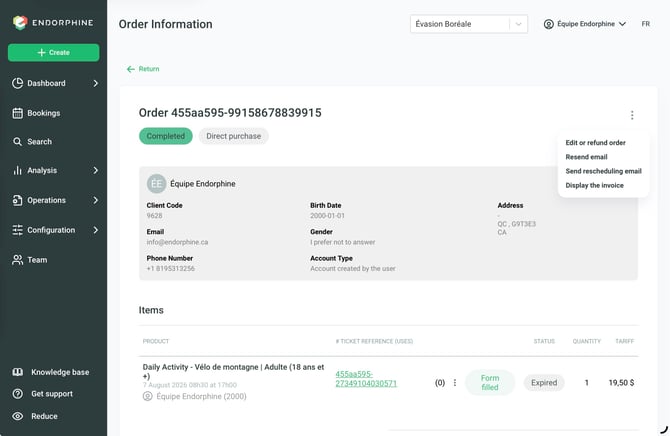
Click the ⋮ (three vertical dots) on the right side of the screen, then select:
Modify or refund order to make changes or issue a refund.
Step 5 – Make the required changes
Depending on your needs, you can:
- Add a new item using the green button at the top right;
- Modify reservation details;
- Adjust prices or quantities;
- Add or remove items;
- Update any other information related to the order.
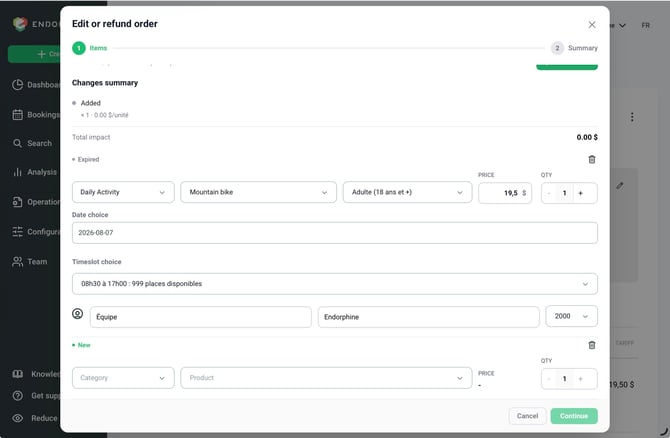
Step 6 – Finalize the changes
Once you have made the changes, click Continue. The system will automatically calculate the financial impact of the changes and display one of the following results:
The customer must pay an additional amount
If the changes increase the total order amount, you must collect the outstanding balance from the customer before finalizing the transaction.
The customer’s banking information is not stored. You must therefore manually enter the customer’s card information when processing the payment.
A refund is due to the customer
If the changes decrease the total order amount, a refund must be issued.
If the original payment was made by credit card, the refund will be processed automatically by the system.
If the original payment was made using another payment method, such as debit, cash, or cheque, you must refund the customer manually using the same payment method as the original transaction.
Important notes
Cancellation fees
When issuing a refund, you can add cancellation fees that will be retained on the order. These fees can be defined:
- As a fixed amount ($);
- As a percentage (%) of the refunded amount.
Internal note
You can add a reason or comment when processing the refund. This information will be saved as an internal note and can be viewed later.
Customer notification
You can choose to send a notification to the customer to inform them of the changes or refund made to their order.